
There is no performance mode in GTA 6. No quality toggle, no 60fps switch. Rockstar confirmed the game targets 30 frames per second on every console, and Digital Foundry's testing of the shipped game found no way to change that. The settings that matter are the ones you can touch.
Seven tabs cover controls, gameplay, display, interface, camera and audio, and the defaults are mostly sensible. A handful are not: motion blur sits at 3, camera shake is on, and subtitles only cover missions. Here is what to change and where each setting lives.
The 30fps Reality Comes First
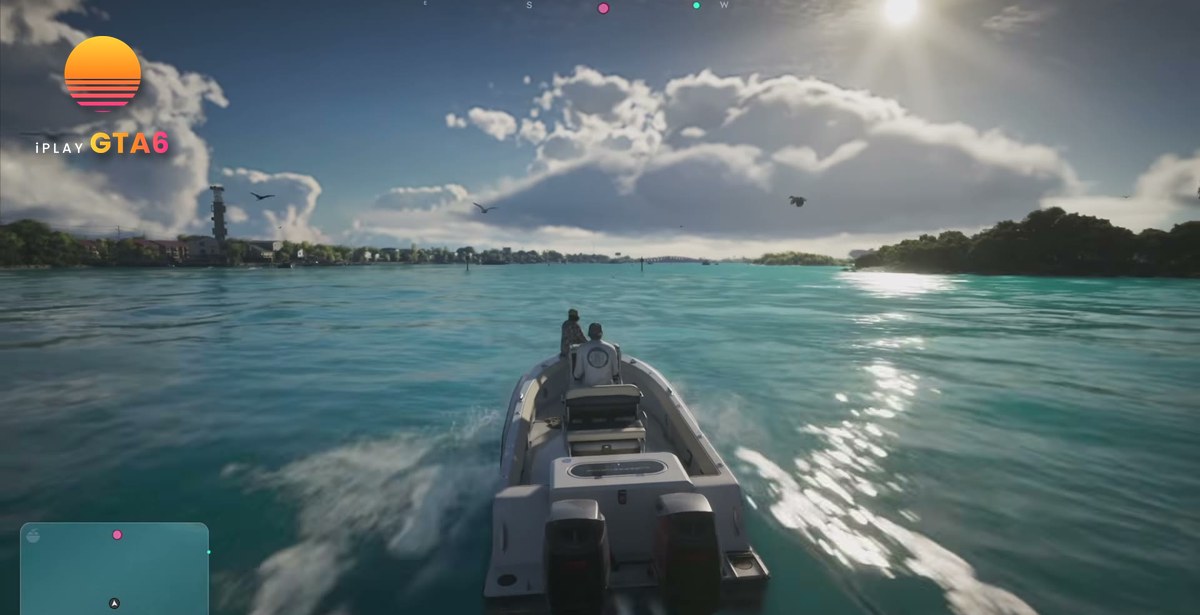
GTA 6 renders at 1440p internally on PS5, PS5 Pro and Xbox Series X, upscaled to a 4K output, and holds 30fps in most play. Digital Foundry measured dips on the base PS5 into the low 20s during heavy explosions. The Pro switches on PSSR and ray-traced shadows automatically. There is no resolution setting, no frame-rate toggle and no VRR switch inside the game. Our performance guide breaks down all four consoles.
Start With the First-Launch Setup
The first time GTA 6 starts, it asks a few setup questions, and nothing you pick is locked in, since every option also lives in Settings. Navigation Experience comes first: Minimap (Dynamic) hides the minimap in quiet moments, Minimap and Compass (Dynamic) adds a compass with your markers, and Always On never hides anything. Always On suits new players. Text size defaults to Small; Medium suits the sofa.
Display: Motion Blur and Screen Effects
Open the pause menu, choose Settings, and press L1 or R1 to move between tabs. The changes that matter most:
| Setting | Where | Default | Change it to |
|---|---|---|---|
| Motion Blur Strength | Display, Visual Effects | 3 | 0 or 1 for a sharper image |
| Flashbang | Display | Bright | Dark if flashes bother your eyes |
| Blood and Gore Intensity | Display | High | Lower if you play in a shared room |
| Camera Shake | Camera, Comfort | On | Off if chases are hard to follow |
| Camera Bob | Camera, Comfort | 10 | 3 to 5 for a steadier view |
| Persistent Center Dot | UI, Reticle | Off | On if camera movement makes you queasy |
Motion blur is the big one. The default of 3 smears fast camera turns, and at 30fps that smear hides judder. Dropping it to 0 gives the crispest picture, but pans will look choppier, because that is the real frame rate showing. Try 1 first and go to 0 only if you like the sharper look. The status, hit and awareness intensities all sit at 5.
Controls: Sensitivity and Targeting
The Controller tab holds four sensitivity sliders, all defaulting to 7: horizontal and vertical look sensitivity, plus horizontal and vertical aim sensitivity. If aiming feels twitchy, drop the aim sliders to 5 or 6 and leave look alone. A sensitivity copied from another player is only a starting suggestion, as Gaming.net puts it.
Targeting lives in the Gameplay tab. The default is Partial, which gently pulls your aim toward a nearby target without locking on. Lock-On snaps to the nearest enemy; Free Aim gives no help. Aim Assist Strength defaults to 4 of 5, so leave it unless you switch to Free Aim. Control Scheme is the other early decision: Default is the new layout, Classic puts GTA 5's buttons back, and Left-Handed swaps the sticks. There is no free button remapping inside the game. Our controls guide walks through every button change.
Camera: Shake, Bob and Comfort
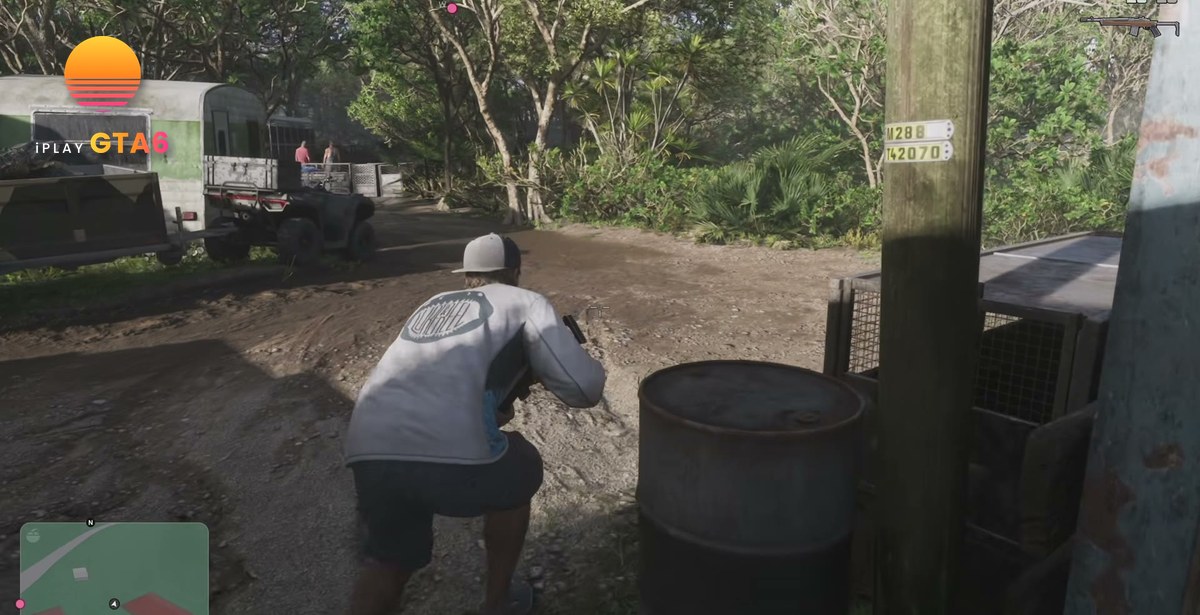
The Camera tab covers on foot, vehicle, aircraft, underwater and cinematic cameras, plus a Comfort section for motion sickness. Camera Shake is a simple on-or-off switch, and turning it off makes chases and shootouts easier to follow. Camera Bob defaults to 10, which is high, so try 3 to 5. Lower the kill-shot and crash cameras if replays interrupt play, and switch on the Persistent Center Dot in the UI tab if moving cameras make you sick.
Subtitles, Text, Audio and the HUD
The UI tab is where readability lives. Subtitles default to Mission Only, which means radio chatter, phone calls and street conversations go uncaptioned, so switch them to On. Three sizes, speaker names and a background option are available. Text size goes up to X-Large. The same tab lets you enlarge map icons, turn on the fuel gauge above the minimap, and switch on the projectile arc for grenades.
The Audio tab has separate sliders for dialogue, music, sound effects, interface and media, so raise dialogue if the music drowns out conversations. Leonida's radio is full of licensed tracks, and our radio stations guide lists every station and host. Mute licensed music if you stream or record. Tinnitus Reduction and Mono Audio cover ringing and one-ear listening.
Assists, TV and Console
GTA 6 has no difficulty setting. Instead, the Gameplay tab has Accessible Combat, which makes enemies weaker and lowers the damage you take, and Reduced Vehicle Damage, which makes getaways more forgiving. Neither one locks you out of achievements or trophies, according to MetaForge's settings guide. Simplified Mini Games eases gym workouts, basketball and hotwiring. Tap Assist, Hold Assist and Hold Delay change how buttons respond, and every change is reversible from Restore Default.
A few useful options live outside the game. Game Mode on your TV is the single biggest change: it skips the picture processing that adds input lag, and usually switches off motion smoothing too. If your TV keeps motion smoothing as a separate toggle, turn it off yourself. Run your console's HDR calibration before you start, in Game Mode and in the lighting you will actually play in.
What to Do Before Your Next Mission
Make these seven changes in order: motion blur to 1, camera shake off, camera bob to 4, subtitles on with speaker names, text size to Medium, navigation to Always On, and dialogue volume above the music. Play one mission with those, then fine-tune sensitivity. Our opening-hours walkthrough covers the missions where they matter most, and our beginner mistakes guide lists the costliest errors. If a change feels wrong, Restore Default is one press away. Our save guide explains the 15 manual slots.
Quick Questions
Does GTA 6 have a performance mode?
No. GTA 6 targets 30fps on every console, with no performance or quality toggle.
How do I turn off motion blur in GTA 6?
In Settings, Display tab, lower Motion Blur Strength. It defaults to 3, so try 1 first and 0 for the sharpest image.
What sensitivity should I use in GTA 6?
Look and aim sensitivity both default to 7. If aiming feels twitchy, drop aim to 5 or 6 and leave look alone.
Where are the subtitles settings in GTA 6?
In the UI tab, under Subtitles and Captions. They default to Mission Only, so switch them to On.
Can I remap buttons in GTA 6?
Not freely. GTA 6 offers Default, Classic and Left-Handed layouts only; use the console accessibility settings for custom mapping.
Does changing settings lock achievements or trophies?
No. Accessible Combat and Reduced Vehicle Damage change the balance of play but lock nothing.